

Picmonkey and Glitter Text in 7 Easy Steps
Last Updated on 2019-09-08 by Linda
Well I don’t know about you but I have always had a fascination with glitter and the ability to create letters/words/quotes with glitter has always eluded me. Well actually I knew how to but without photoshop, it did not do me much good, well hallelujah people PicMonkey can perform the same magic.
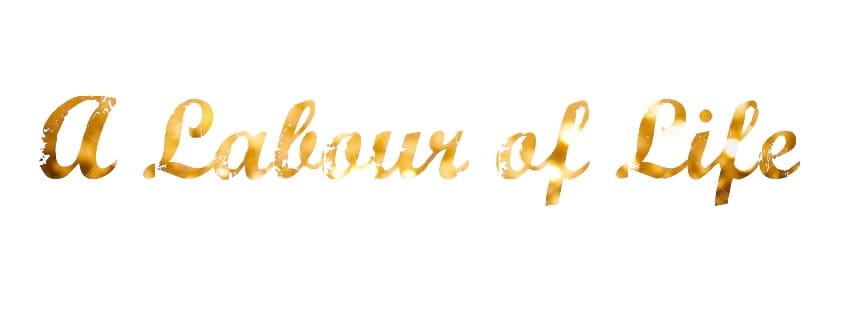
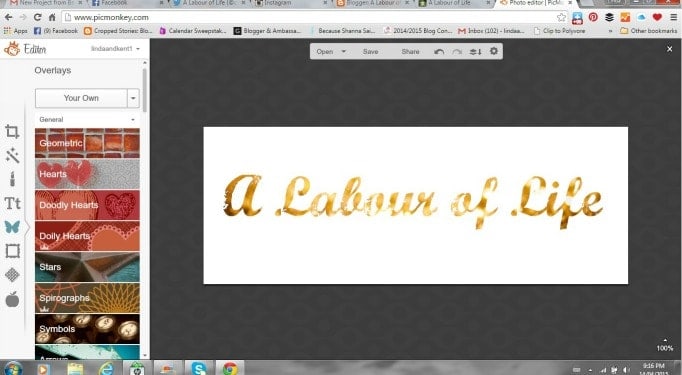
Wow how pretty is this banner, want one of your own???
(skip below for the OOTD)

Disclosure: This post contains affiliate links. What this means is that if you click over to one of the provided links and purchase something, I get a small commission at no added cost to you. Thanks for supporting A Labour of Life
Glitter Text DIY with PicMonkey
This easy seven step process will allow you to not only create glitter words in Picmonkey but you can sub any picture and make what I like to call “Word Art” To simplify, especially if you are like me and sometimes do not know the official term,. You may call it “Clipping mask with text Image as font”. or Crop an image with words.Make an image in the shape of letters.Put see-through text over your image.Place an image inside of text.
7 Steps to Perfect Glitter Text
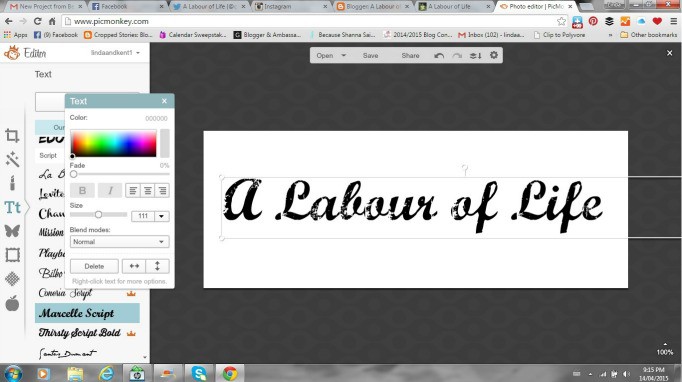
1. Open up PicMonkey and Pick the image you want to fill your text. Note the image dimensions, or at least general size. You’ll want it to be roughly as large as your finished product, otherwise you may lose quality by stretching it.

2. Open a canvas in the Design section of PicMonkey. If you want your finished project to be the exact size of your fill image or you have specific dimensions in mind, make a Custom canvas.

3. Make your canvas white, woohoo how easy is this step……
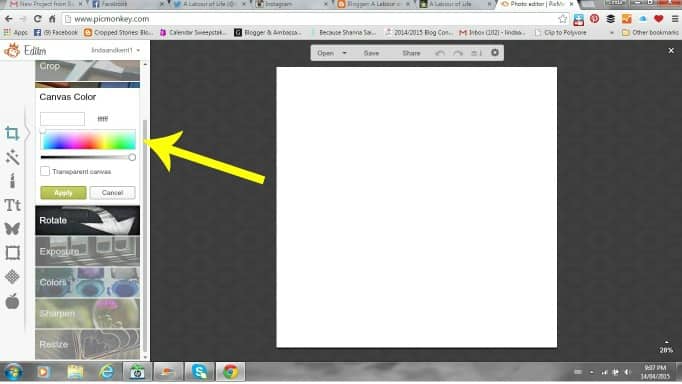
4. Add text, shapes, or anything else you want to be filled with your image. Everything you add needs to be black. The thicker the text the more design you will see, here I used Ultra.

5. Flatten your image see (D) below on the image by clicking the “Combine” button in the top toolbar.This is the most important step. If you want more of your image to show, you can use the Draw tool in the Effects tab to fill in the enclosed spaces of your letters. Just make sure you’re drawing black!

6. Follow (a) arrow above Open your image. Go to the Overlays tab (butterfly icon), and click “Your Own.” Your image will be tiny, but all you need to do is drag the resize handles (C arrow ) to bring it to the size of your text.
7. Set the Blend mode to Lighten. You’ll find this option in your image’s Overlay palette.( arrow B above).
there you have it crop and resize as you wish

I tried a new facebook banner.
Picmonkey Tips
Picmonkey has also advised you can do the reverse: : If you want a black canvas, you can totally do that. Just make sure your text and shapes are white, and that you set the Blend mode to Darken.
( Thanks to PicMonkey for the easy to follow guide that I have simplified even further for you, and to think I usually skip those hints and tips that pop up)



Really helpful breakdown of creating word art effects—especially the explanation of clipping masks and placing images inside text, which makes the process feel much more approachable. Anyone exploring creative editing like this might also enjoy learning about what is shutter speed on a camera, since understanding how images are captured can add another layer of control when choosing photos to use inside text designs.
This was an awesome step by step! Thank you!!
I am glad it was easy to follow. Thanks for reading and letting me know
This is amazing! I am loving your outfit and your new design!
Thanks JennI don't know why i do not wear this blazer more but it is fun. thanks for the link up and I have one tomorrow if you are interested.
Is there a Way to Make a Transparent background so you can use the words over something? Thanks for this great tortioural
Thanks for sharing this tutorial. I found it via My So-Called Chaos; she featured it in her #WeeklyRoundUp yesterday.
thanks for the tutorial, great timing too (right now that i'm photoshop-less)!
Totally madly in love with your outfit. Thanks for sharing the tutorial
http://www.amysfashionblog.com/blog-home
I LOVE PicMonkey so thank you, thank you, thank you for the tutorial! Now I'm off to play! 🙂
Thanks, I could not believe how easy it was..
Great tutorial!!
Isn't Picmonkey the best? I use it to resize all of my images so my blog isn't slowed down by the large files. Love the hot pink blazer! I have an almost identical one from Loft…right down to the printed lining! You look great. And thanks so much for linking up!
XOXO, Jenn
The Stylish Housewife
I am a picmonkey addict but normally I skip the tips section, was so glad I did not this time. As for spring florals I am happy for spring anything, so tired of winter
You are most welcome, hope it works for you.
Thanks, I always wanted to do glitter letters LOl
I believe you can make them even without the subscription. i searched a glitter picture on google as the template. I switch shoes almost daily because i do not like to wear my good pumps outside. Today I am in sneakers that I wore all day LOL. The dress was on clearance 10.00, pretty awesome right
Aren't you glad it's time for Spring florals! Thank you for sharing the picmonkey tip, it's my favorite photo editing software. #ThriftingDiva
I love PicMonkey. Are the glitter letters part of their Pay Program?
This outfit is your BEST one this year. What a stunning floral dress. And as always I love your statement necklace and choice of shoes. I love that besides myself, you are the only blogger I know who switches shoes (pretty often) during the day, with the same outfit. I did that today also from pumps to slip-on loafers, for work. Different shoes can totally switch up the look don't you think?
What a neat tutorial! Also, I'm loving the pink blazer and yellow pumps!
Floral days are coming! Thanks for this tutorial!